Note: Only reinstall Windows if it is really needed, for example after every step of the Ultimate Technical Troubleshooting Guide has been completed without success.
This guide walks you through the whole process: downloading the official Windows ISO, creating a bootable USB drive with Rufus, and installing the operating system.
Requirements
- A computer with internet access to download the files.
- A USB flash drive with at least 8 GB of storage.
- The computer where Windows will be installed.
Part 1: Download the Windows ISO from os.click
os.click offers a simplified way to download operating system ISOs.
-
Open the website
Open your browser and go to https://os.click/en.

-
Start the process
Click
GET MY ISO. -
Select the OS family
Choose
Windowsas the operating system family.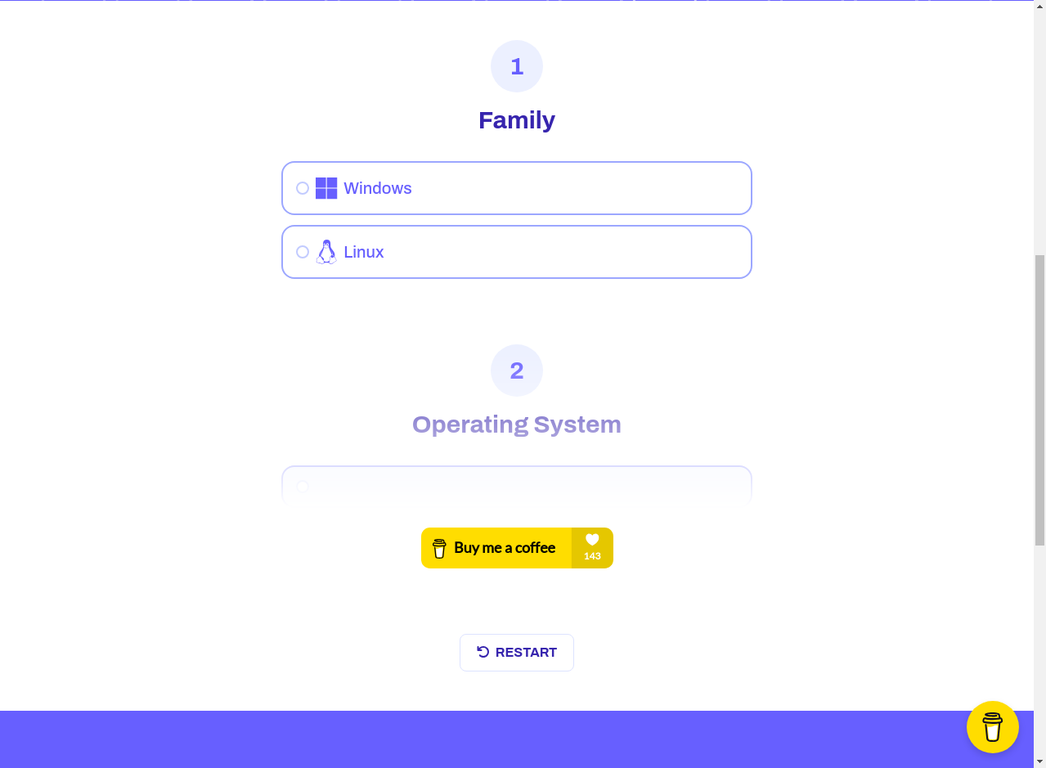
-
Choose the Windows version
Select the version you want to install, for example
Windows 11.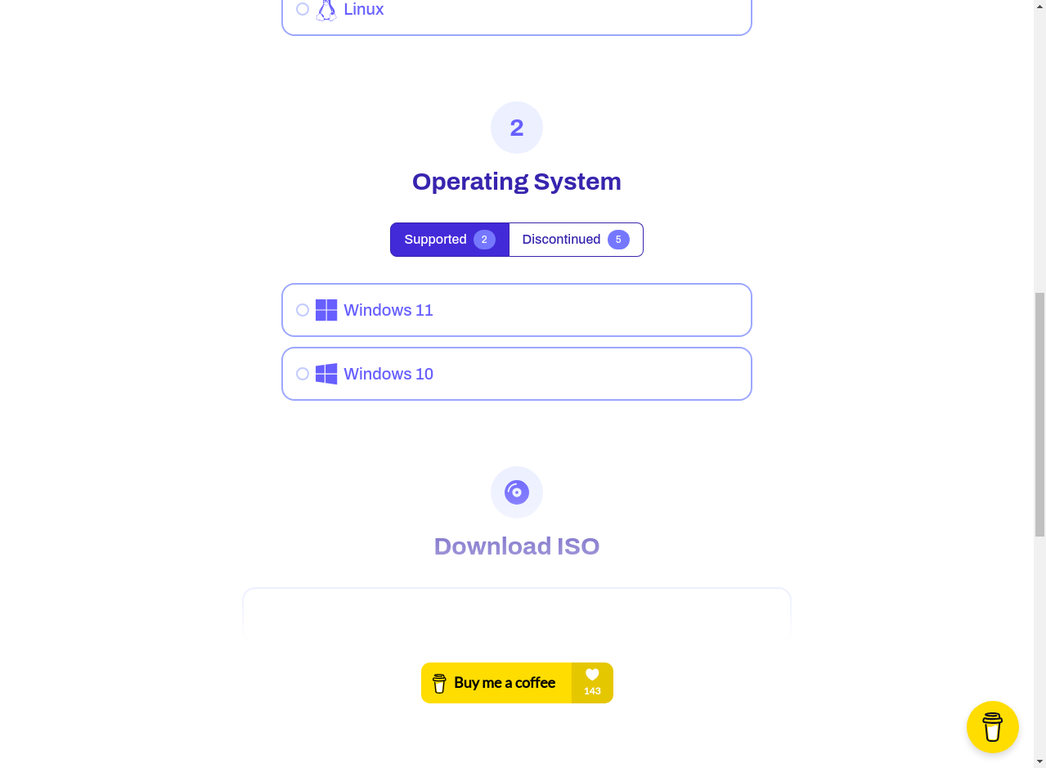
-
Complete the selection
Choose the Version, Build, Edition and Language you need. The site guides you through each step.
-
Download the ISO
At the end of the process a download link is generated. Download the file and save it somewhere easy to find.
Part 2: Create the bootable USB drive with Rufus
Rufus is a popular and reliable tool for creating bootable USB drives.
Warning: Creating the bootable drive erases all data on the USB drive.
-
Download Rufus
Go to https://rufus.ie/en/ and download the latest version.
-
Run Rufus
Rufus is portable, so there is nothing to install. Run the downloaded file.
-
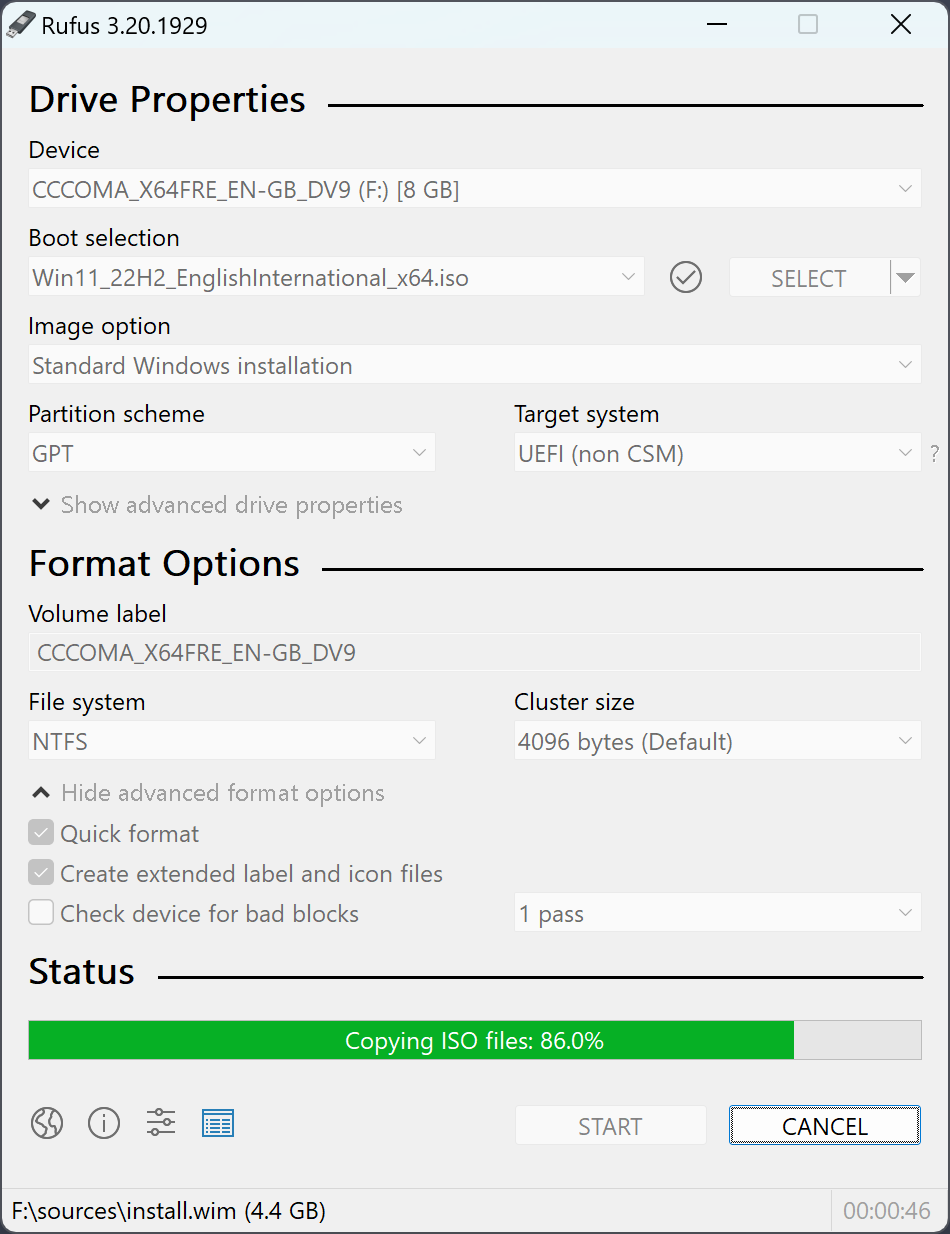
Configure Rufus
Set the options as follows:
Device: insert your USB drive and select it from the list.Boot selection: clickSELECTand choose the Windows ISO you downloaded.Partition scheme:GPTfor modern computers.MBRmay be the correct option for older computers.Target system:UEFI (non CSM)is generally the default for GPT.File system: keepNTFS.Cluster size: keep the default.
-
Start the process
Click
START. Rufus warns that all data on the USB drive will be erased. Confirm to continue.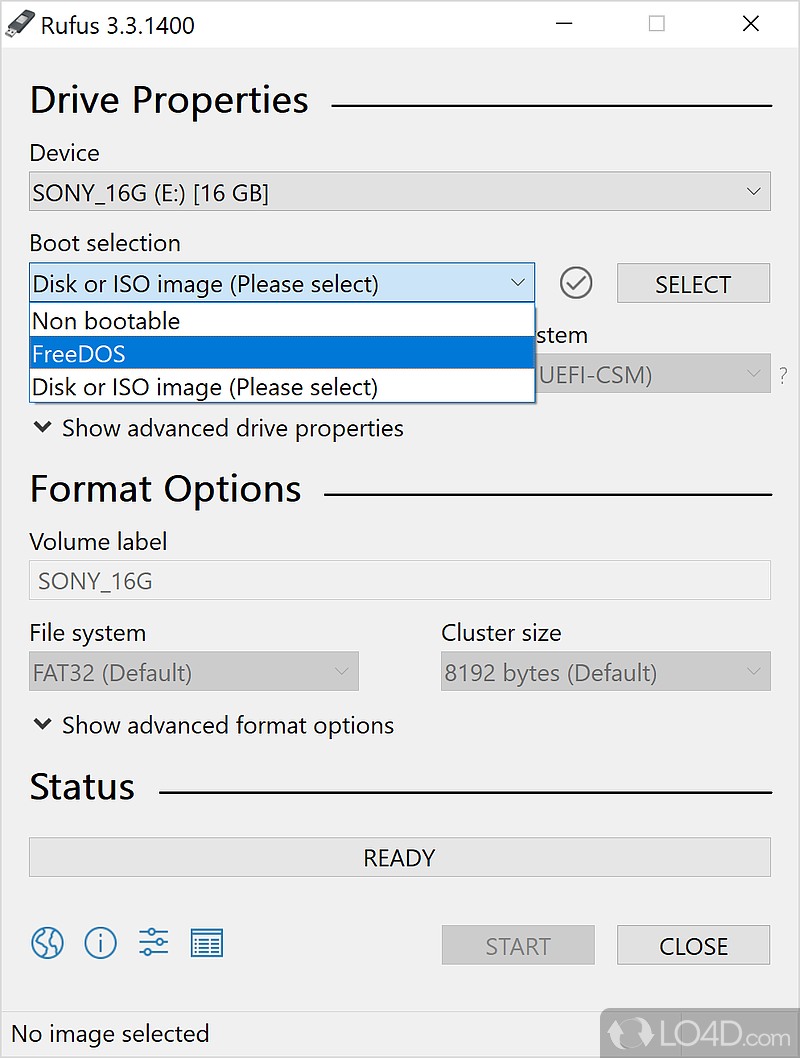
-
Wait for completion
This can take a few minutes. Wait until the Rufus status bar is fully green and shows
READY.
Part 3: Install Windows
-
Connect the USB drive
Plug the bootable USB drive into the computer where Windows will be installed.
-
Enter the BIOS/UEFI
Restart the computer and press the key that opens the BIOS/UEFI setup, usually
Del,F2,F10orEsc. Check your motherboard manual for the exact key. -
Change the boot order
In the
Bootsection, move the USB drive to the first position.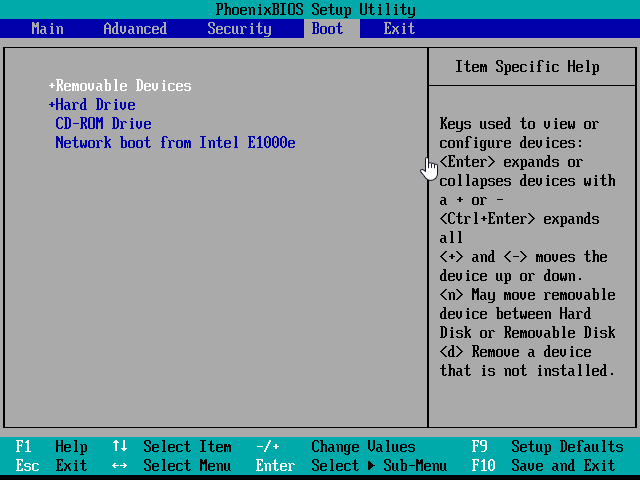
-
Save and exit
Save the changes and exit. The computer restarts and boots from the USB drive.
-
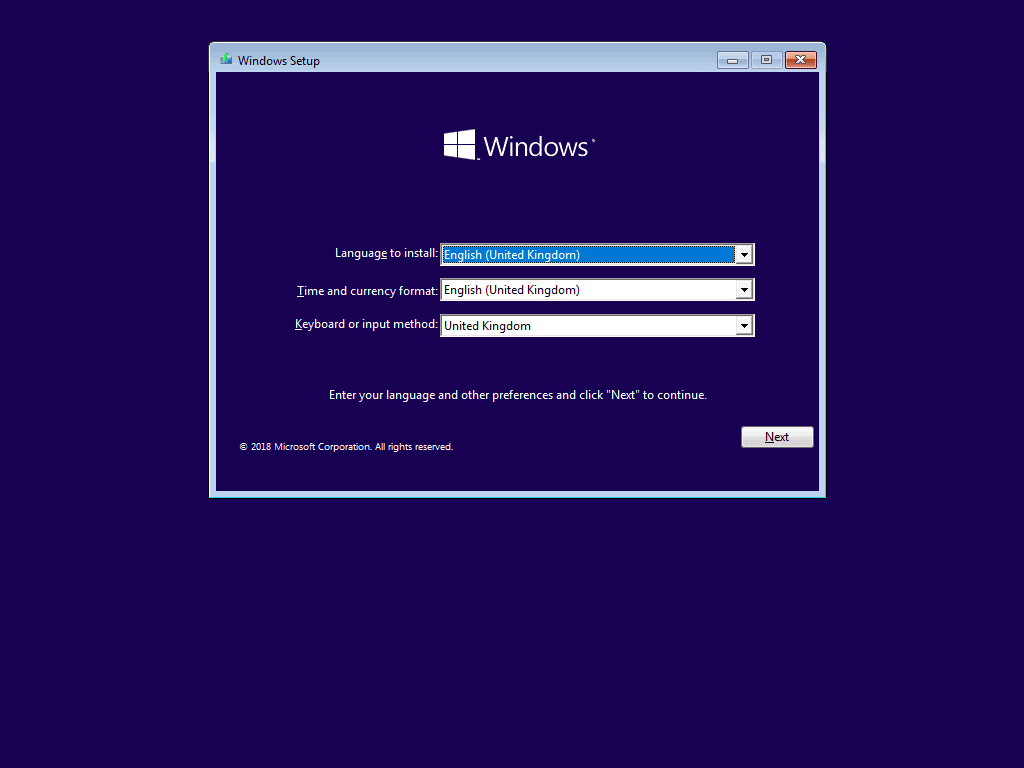
Start the Windows installation
The Windows Setup screen appears. Follow the on-screen instructions to choose the language, the Windows edition and the installation location.
-
Complete the installation
Setup copies the Windows files to your drive and restarts the computer several times. Follow the instructions to set up your user account and other preferences.
Success: Windows is now reinstalled from the bootable USB drive. A clean installation like this is useful for fixing problems or upgrading to a new version of Windows.